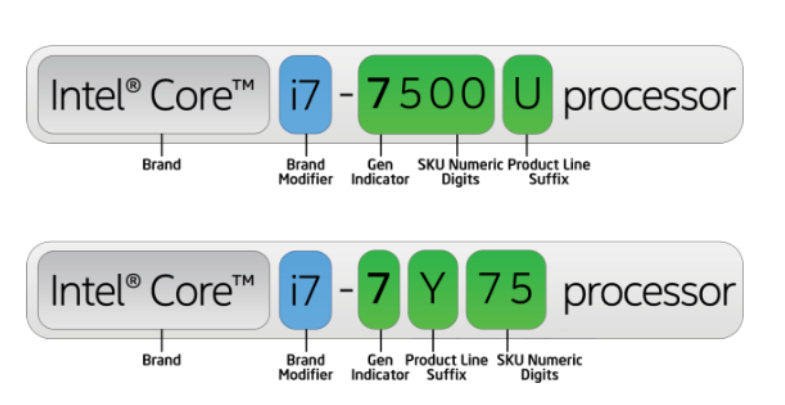
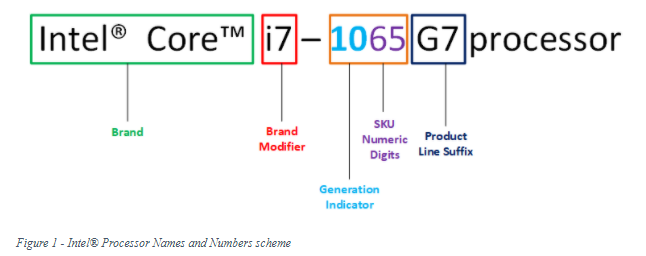
Scientific article by assistant lecturer Hussein Ali Ameen on the types of microprocessor
When looking at a processor, there are two main figures you’ll see time and time again. The first is clock speed. This is measured in gigahertz (GHz, one billion hertz), and tells you how many operations a processor can do each second. The higher the number, the faster the computer (when comparing like-for-like laptop/desktop models). You’ll notice a higher clock speed when opening programs, files and exporting photos. There's only so much space available on a computer's main board, and only so much power available from its power supply, so getting the most oomph out of those limited resources is a big part of chip design. One way chips can do more work is through a process called multi-threading, or "hyperthreading" as Intel calls it. This means one processor can act like two processors, handling multiple processes simultaneously. Another approach is to build a single chip that actually does contain multiple processors, called cores. You can have more cores, or give them multi-threading so each core works harder, or you can do both on the same chip.<br /><br />The second term you’ll see is number of cores. Typically, laptop and desktop chips have two or four cores (known as dual- and quad-core). Some newer models have six and even eight. The more cores, the better, because it allows your computer to run multiple tasks at the same time without slowing down. You’ll appreciate more cores if you often have lots of programs running or open lots of web browser tabs.<br /><br />Intel Atom – Tiny tablets<br />Atom processors heralded the arrival of ultra-thin, ultra-light laptops in the mid-2000s. These chips offered four cores for sprightly everyday computing performance. Nowadays, these chips are generally relegated to very cheap Windows tablets costing under £200. They’re not fast by any means, but they make up for their lack of oomph with impressive battery life figures and their ability to fit into very thin devices.<br /><br />Intel Celeron and Pentium – Cheap laptops and very cheap desktops<br />Celeron and Pentium processors are at the very bottom of Intel’s range. You might be familiar with the Pentium brand, with the name being a mainstay of more powerful computers of the late 1990s. Nowadays, it sits just above Celeron in terms of performance.<br /><br />Newer Pentium models, such as those launched in 2017 onwards, are becoming more common on laptops costing between £250 and £300. These chips are power-efficient, meaning they’re great when you want a laptop with a long battery life. They’re perfectly usable for web browsing and basic office work.<br /><br />You can also find Celerons inside some very cheap desktops. These machines tend to score very poorly in our tests and negate many of the advantages you get from having bought a desktop in the first place. We don’t tend to recommend them.<br /><br />Intel Core i3, i5 and i7 – More complicated than they seem<br />This is where things start to get a little bit confusing and is where Intel’s naming convention disguises how powerful a laptop actually is.When looking at what sort of processor a computer has, be sure to check the full specification sheet to see the precise processor model. This makes a big difference to how powerful your PC will be.<br /><br />For example, a computer that’s labelled as having a ‘Core i5’ processor could have any number of different specifications.<br /><br />Taking the Core i5 example, your computer could have any of the following, and many beyond that as well: Core i5-7400, Core i5 7600K, Core i5 7300U, Core i5-7500HQ, Core i5-7400T and Core i5 7Y57. The trend applies to i3 and i7 chips, too. Note the different four-digit number and the trailing letter (or the Y in one case). It’s the trailing letter (suffix) that gives you the most information about what sort of processor you’re looking at.<br /><br />No suffix: This is a standard desktop processor, generally with four cores and a high clock speed for excellent everyday performance and the ability to edit videos and photos at high speed.<br />T suffix: Found in smaller desktops and AIO PCs. These chips are functionally the same as those without a suffix and have the same number of cores, but with a slower clock speed.<br />K suffix: The highest-performance processor you’ll find in a computer you can buy on the high street. Similar to a chip with no suffix, but generally with a higher clock speed. These chips can be ‘overclocked’ by those with technical knowledge.<br />U suffix: ‘Ultra’ low power. These chips generally have two cores (although newer models now have four cores) and are among the slowest processors with Core i branding. These chips can often be found in cheaper AIO PCs and in many laptops. They can be suitable for photo and video editing, but tend to be a lot slower when performing tasks such as exporting files to disk. If you’re looking for a photo-editing machine, pick a Core i5 or even try to stretch to an i7.<br />HQ suffix: Generally found in powerful laptops and normally come with four cores. Perfect for video and photo editing, but sacrifices battery life and portability.<br />Y in the middle: Y are the lowest-power chips you can find. They aren’t really suitable for photo or video editing but will be fine for lighter tasks. The advantage of choosing one of these is very good performance for lighter tasks, coupled with a longer battery life. Laptops that use this chip tend to have fanless designs, meaning they’re totally silent and very thin.